Audit Trail Software for Accurate and Transparent Accounting Records
In many businesses, more than one person works on the same accounting data. A voucher entered in the morning may be modified later, a payment entry may be deleted, or an account or item master may be changed. If a figure later does not match, it can be difficult to identify what changed, who made the change, and when. To ensure transparency, the MCA audit trail requirement mandates that from 1 April 2023, companies using accounting software must maintain an edit log that records changes with the date and cannot be disabled.
Track Edits. Know Who Made Them.
See what changed in your accounting records and when.
Trusted by Businesses, Rated by Experts


How BUSY Helps You Maintain Complete Control Over Accounting Data
Tracks All Changes Made to Transactions & Masters
Identifies Who Changed What and When
Reviews Original & Modified Voucher Details
Exports Audit Reports for Easy Verification
How to Enable and View Audit Trail in BUSY
Step 1a: Enable Audit Trail
.png)
Go to Settings > Features/Options > General. Then enable the Audit Trail option.
OR
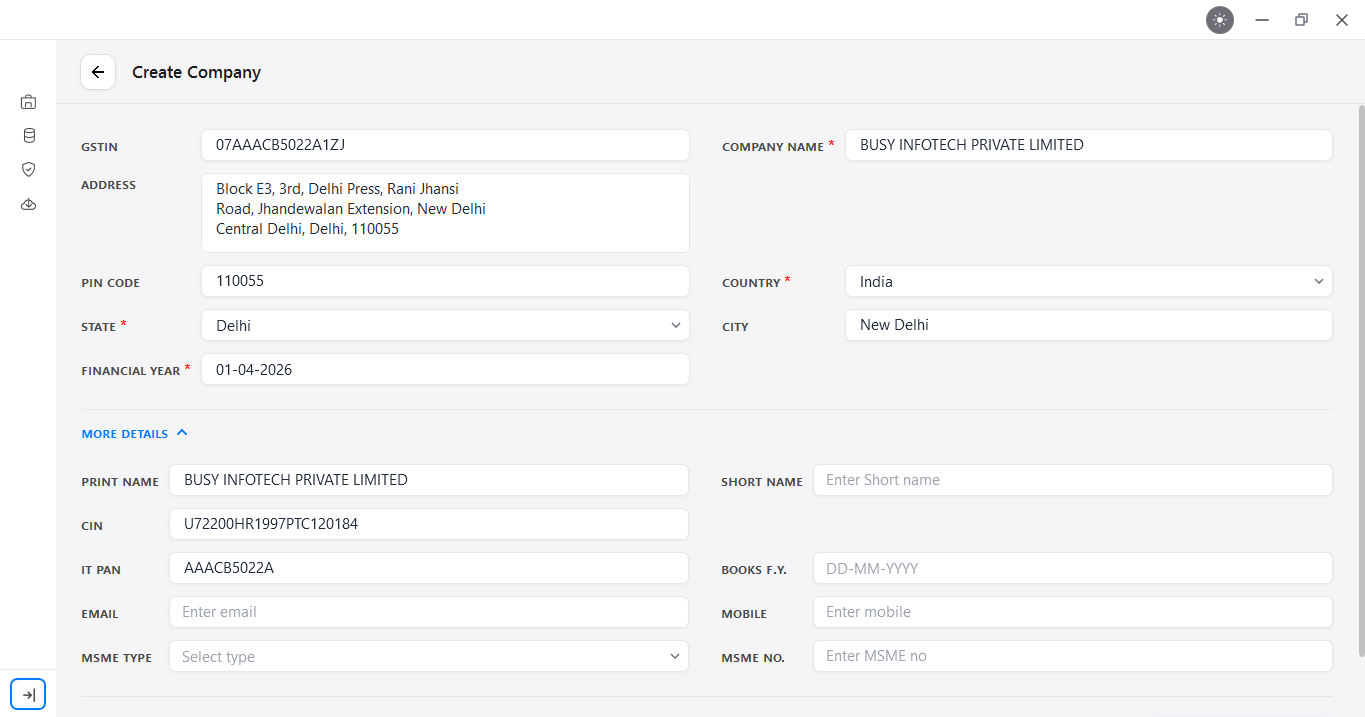
If a GSTIN or CIN was entered while creating the company, the Audit Trail option under Settings > Features/Options > General may already be enabled by default.
Step 1b: Enable Detailed Audit Trail
.png)
Enable Detailed Audit Trail to maintain a more detailed record of changes. It is recommended for maintaining the Audit Trail as per MCA requirements.
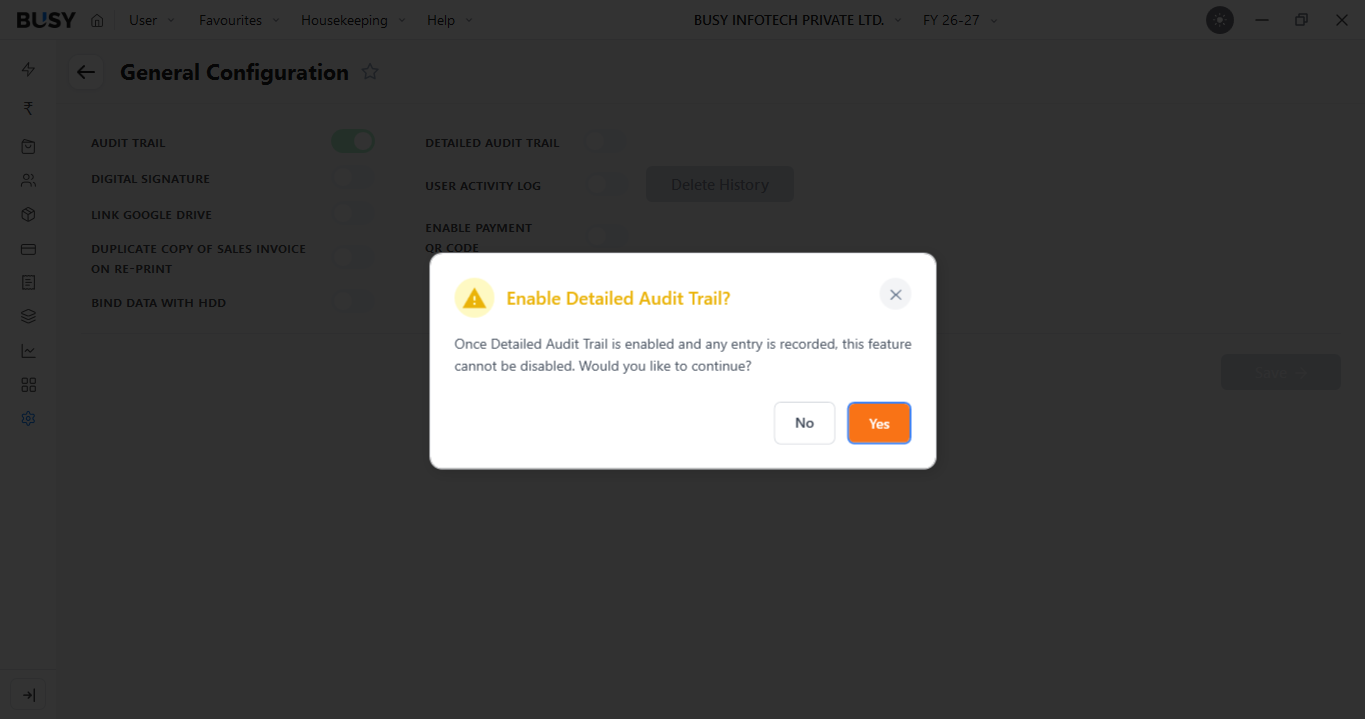
NOTE: Once Detailed Audit Trail is enabled, it cannot be disabled.
After enabling Audit Trail, BUSY records changes made to accounts, items, and vouchers. This includes additions, modifications, and deletions in Sales, Purchase, Payment, Receipt, and other entries. Each activity is recorded with a timestamp.
.png)
When Detailed Audit Trail is enabled, a Modification Narration option appears whenever you modify a voucher, account, or item. You can enter the reason for the change, making it easier to understand later why the entry was modified.
Step 2: Open the Audit Trail Report
.png)
Go to Reports > Checklist > Audit Trail Report
Step 3: Select the Report Type and Apply Filters
-1.png)
%20(1).png)
Click Advanced Filters in the top-right corner. Choose whether you want to view a Summary Report or Detailed Report. The available filters will change based on the report type selected.
%20(1).png)
i) For Summary Report: Select the Details to be Shown from the drop-down menu. You can choose from options such as Account Day Book, Inventory Day Book, or List of Masters.
%20(1).png)
ii) For Detailed Report: Select whether you want to view changes for a Voucher or Master.
If you select Master, choose either Item or Account. If you select Voucher, select the required Voucher Type from the drop-down menu. Then, select the Voucher Series and enter the Voucher Number.
Step 4: View the Audit Trail Report
.png)
The Audit Trail report shows details such as the user who performed the action, the type of action performed, the date and time of the activity, and the version details.
What Our Customers Say
Real experiences from businesses across India.
Flexible Plans for Every Business
Paid plans start at just ₹5,000/year. Whatever your size, from small business to scaling enterprise, there's a BUSY plan built for you, so pick what you need today and upgrade anytime.
Enjoy More Accounting Benefits With BUSY
Free Mobile App for access on the go
Complete control over the User Activity Log
Auto-Backup through Google Drive