Stock Ageing and Reorder Management in BUSY
Businesses dealing with multiple products and changing stock levels need to maintain the right inventory balance. Excess stock can increase holding costs, while low stock levels can lead to delayed orders and missed sales opportunities. Stock ageing and reorder management helps businesses identify slow-moving inventory and maintain optimum stock availability.
Keep Stock Moving. Avoid Shortages.
Identify ageing inventory, monitor stock levels, and reorder at the right time.
Trusted by Businesses, Rated by Experts


How BUSY Helps You Improve Inventory Planning
Identify Slow-Moving & Ageing Stock Easily
Analyze Inventory by Item, Group, Warehouse & Category
Monitor Stock Value for Better Purchase Decisions
Set Reorder Levels to Prevent Stock Shortages
Stock Ageing Report
Step 1: Open the Stock Ageing Report
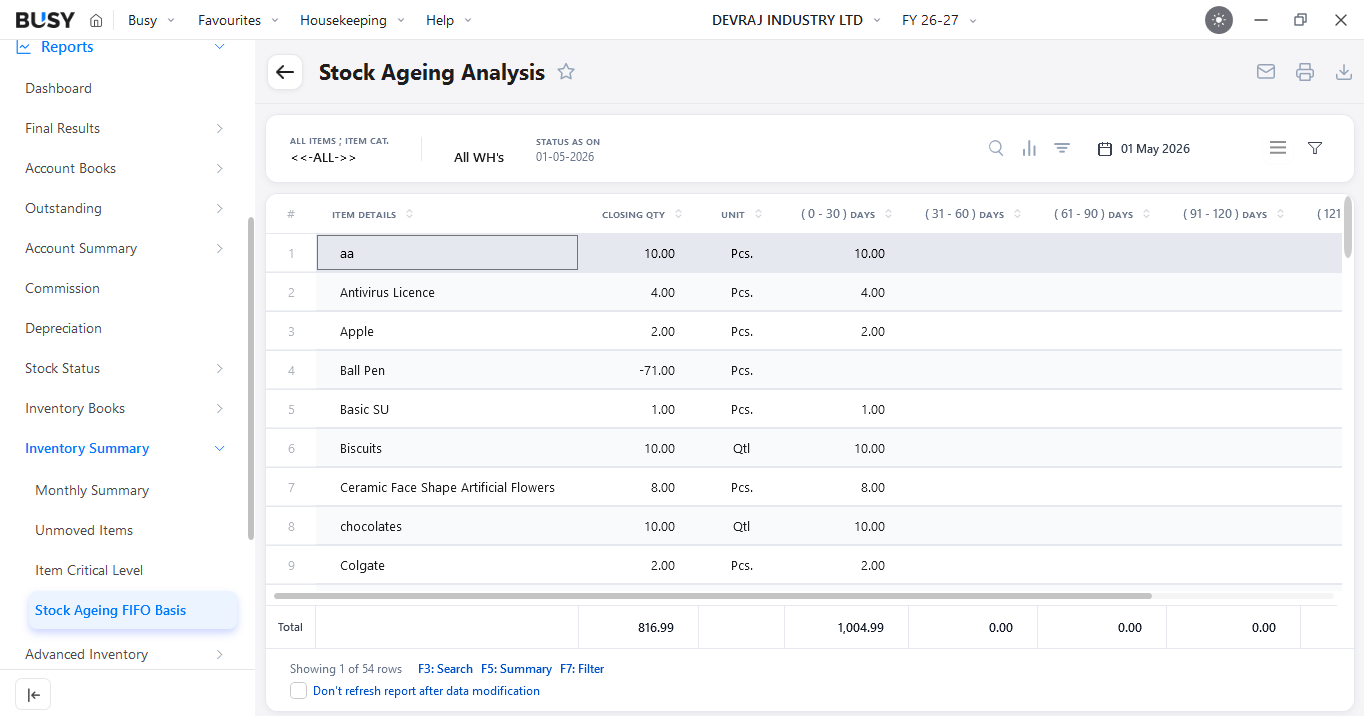
Go to Reports > Inventory Summary > Stock Ageing (FIFO Basis). The Stock Ageing Analysis report will open.
Step 2: Select the Display Type
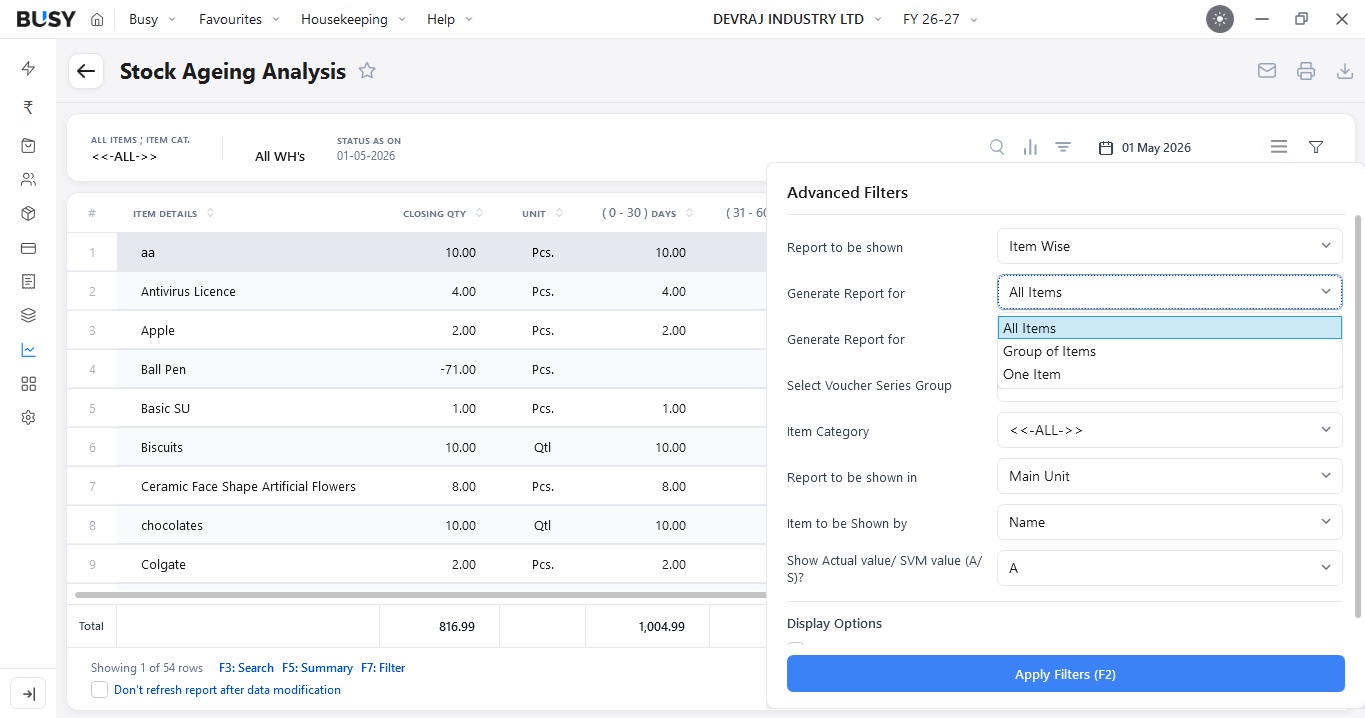
Use Advanced Filters to choose how you want to view the report. Select either Item-wise or Group-wise display based on your requirement.
Step 3: Apply Advanced Filters
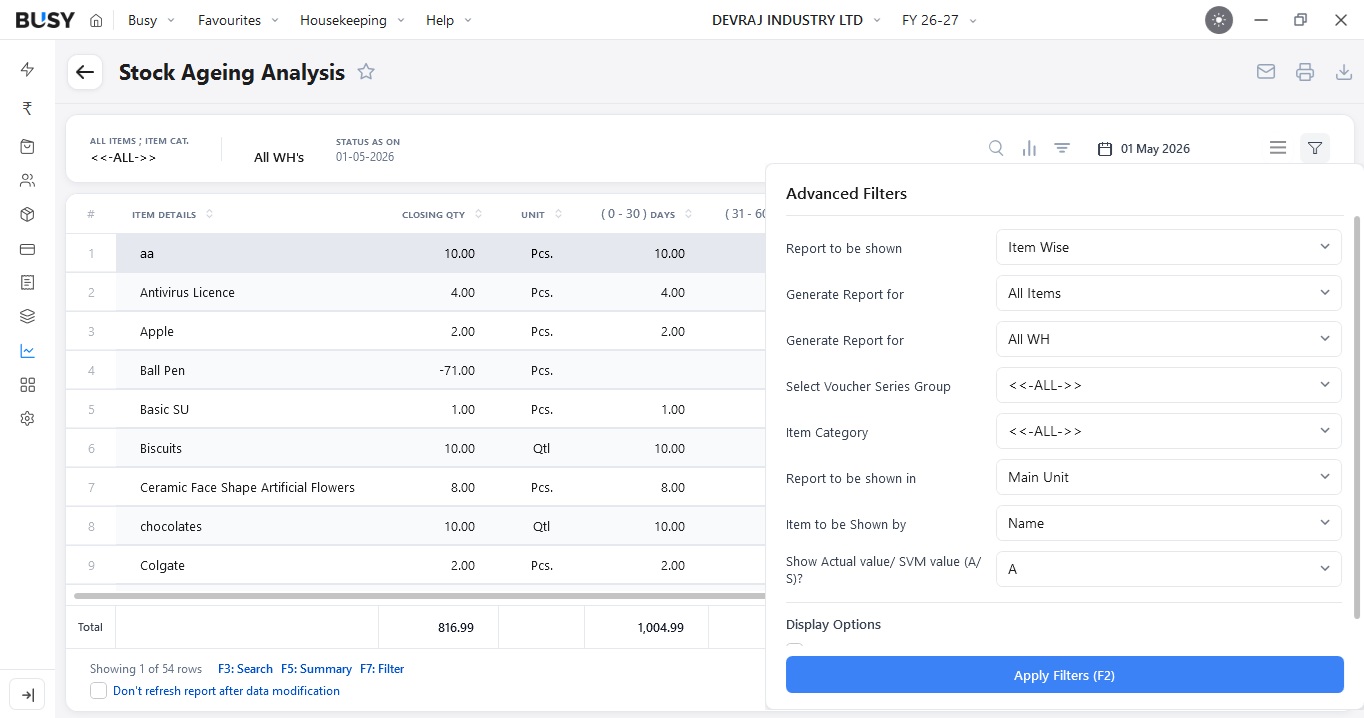
Specify whether you want to view all items, a group of items, or a specific item.
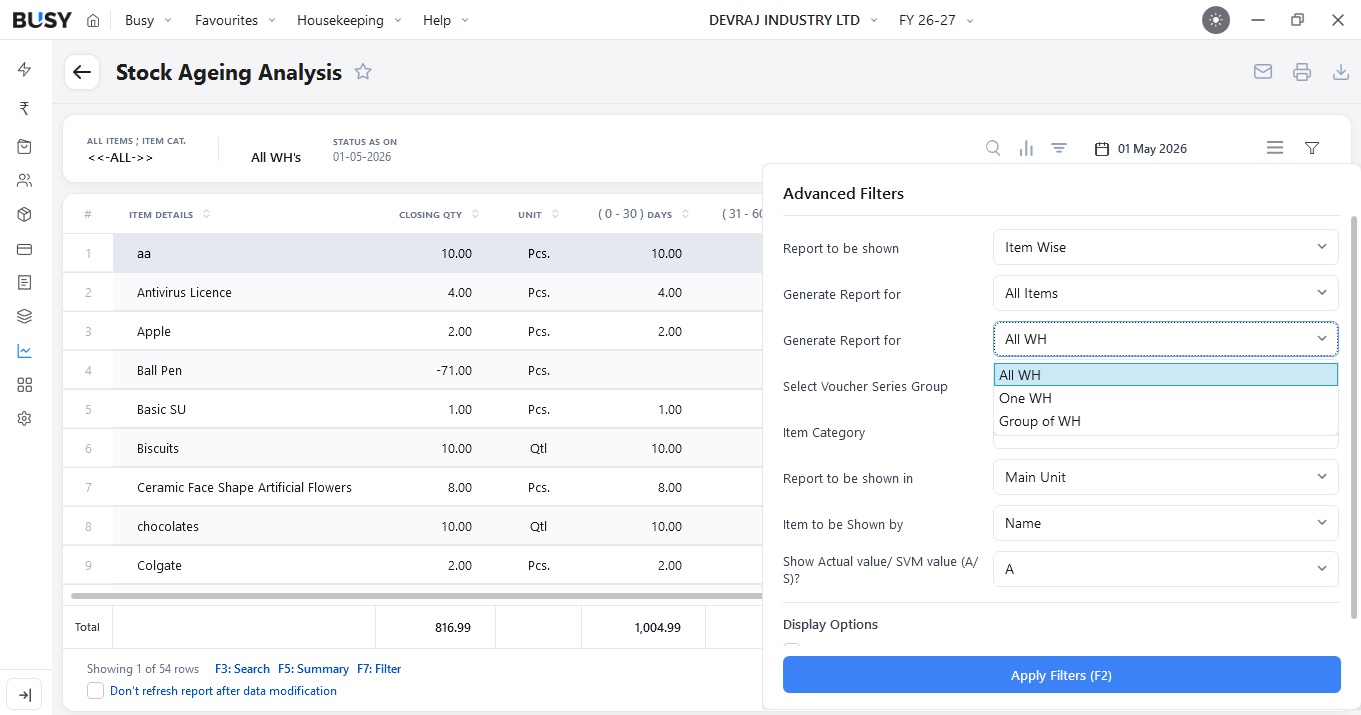
You can also select all warehouses, a group of warehouses, or a specific warehouse, and further filter the report by item category.
Step 4: Toggle Stock Value Visibility
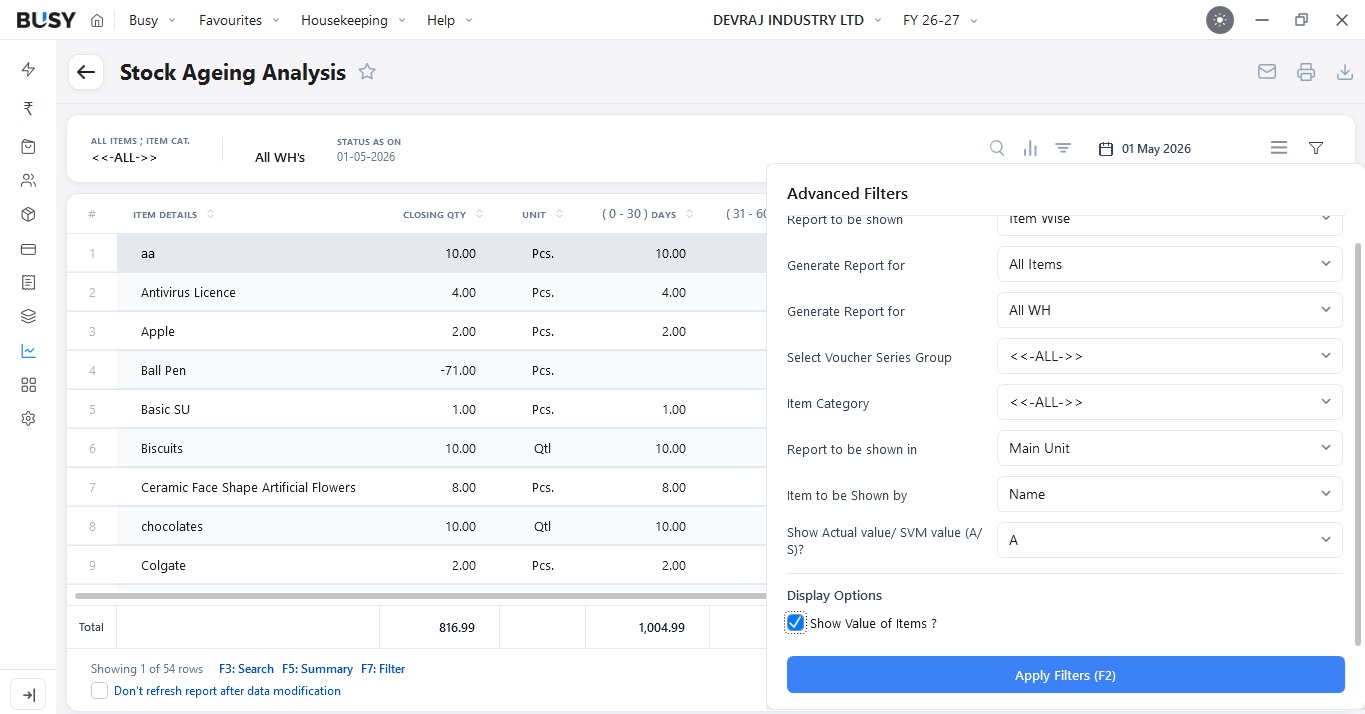
If required, enable Show Value of Items? to view the value of ageing stock along with the quantity details.
Step 5: Select the Report Date
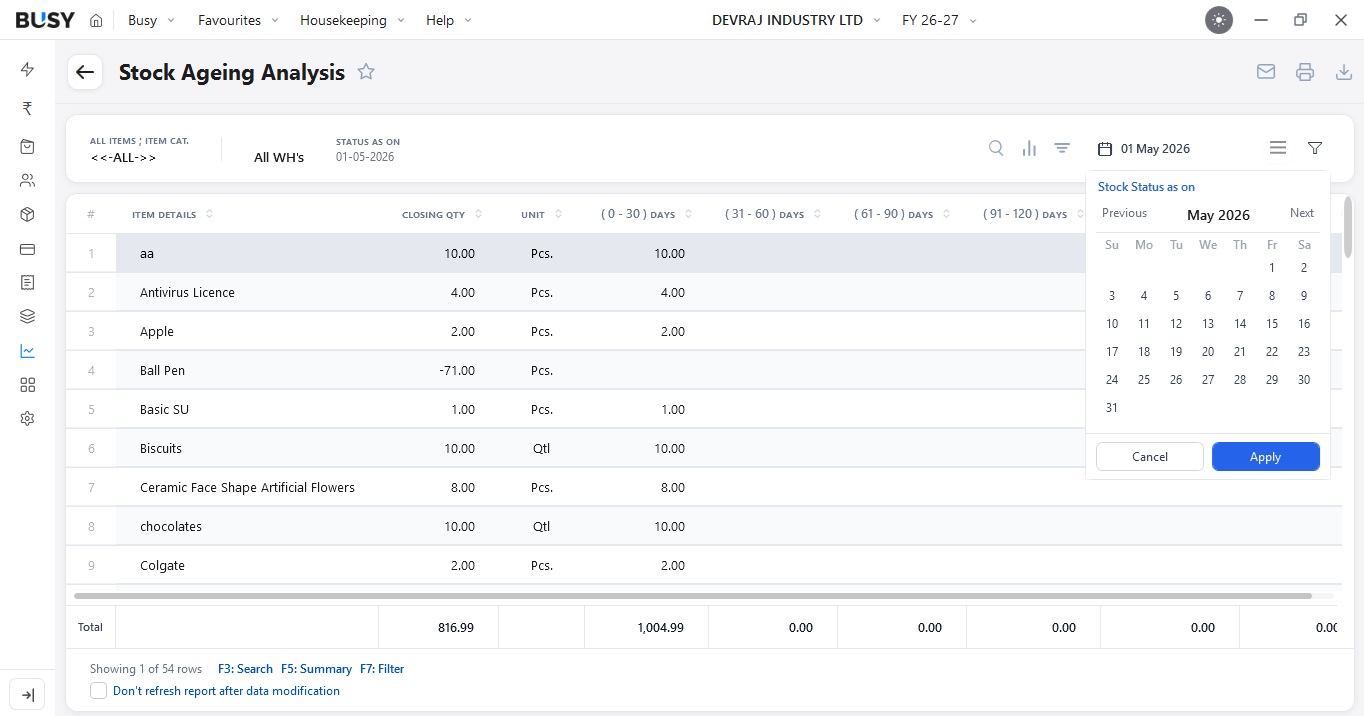
Use the Date Filter option in the top-right corner to view the stock ageing report as of a specific date.
Step 6: Use Additional Report Options
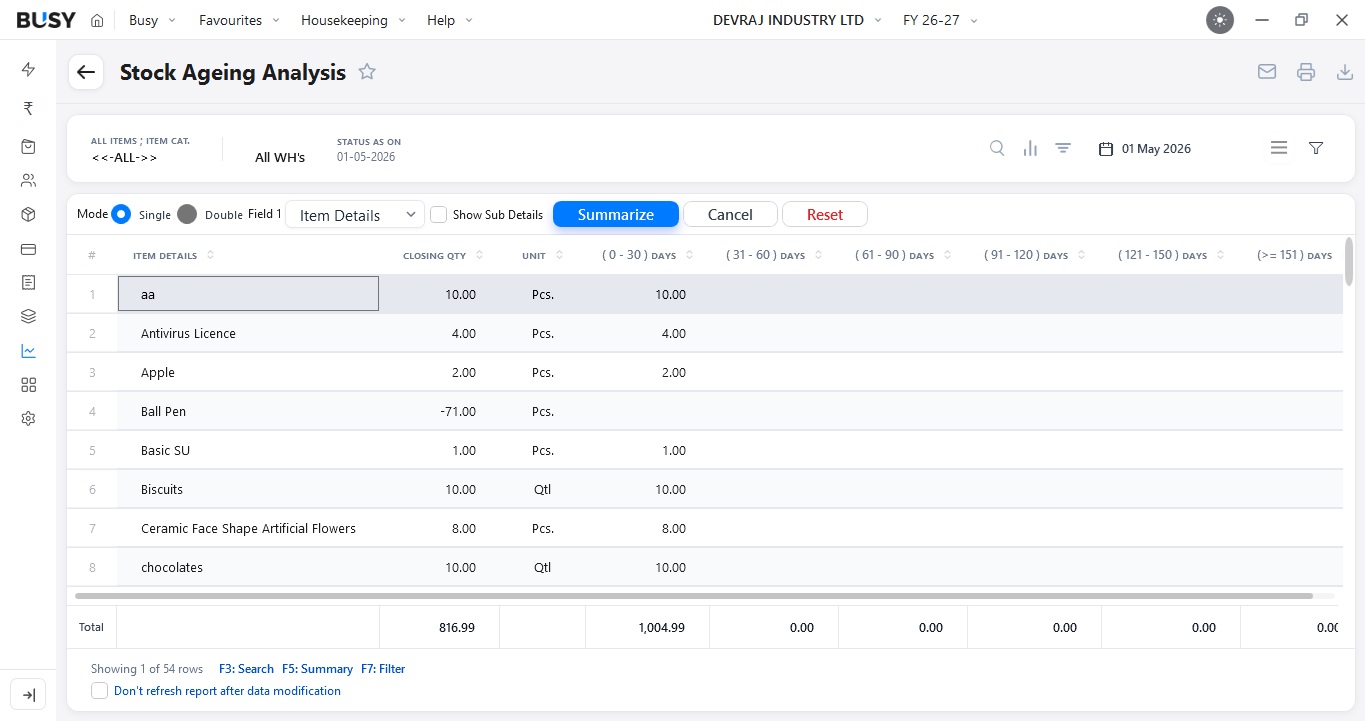
Use the options available at the top of the screen to further customise the report.
You can search within the report, view the report summary, or apply basic filters as required.
Step 7: Customise Report Columns
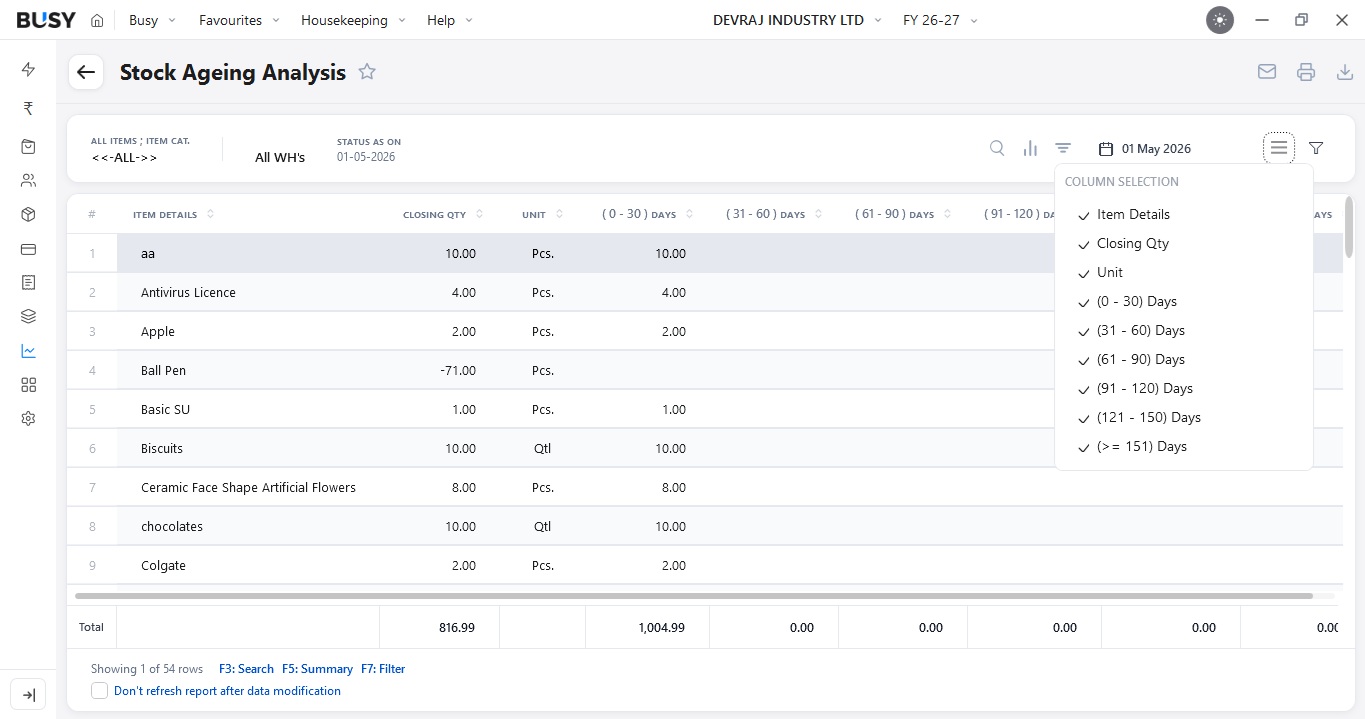
Use the Column Selection option to show or hide columns and display only the information relevant to your report.
Reorder Management
Step 8: Set the Critical Stock Level
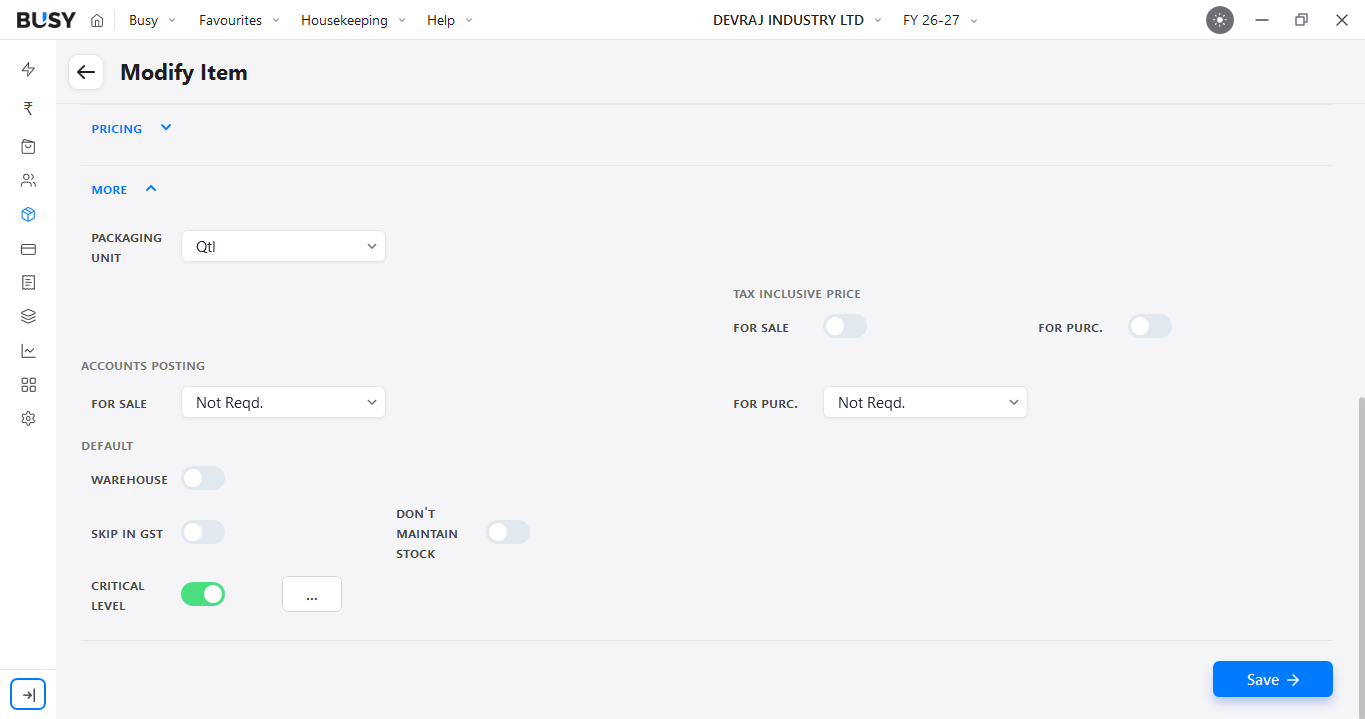
While creating or modifying an item, scroll down and click More. Enable Critical Level.
Critical Level allows you to define stock thresholds for an item so that BUSY can alert you when the configured stock condition is reached.
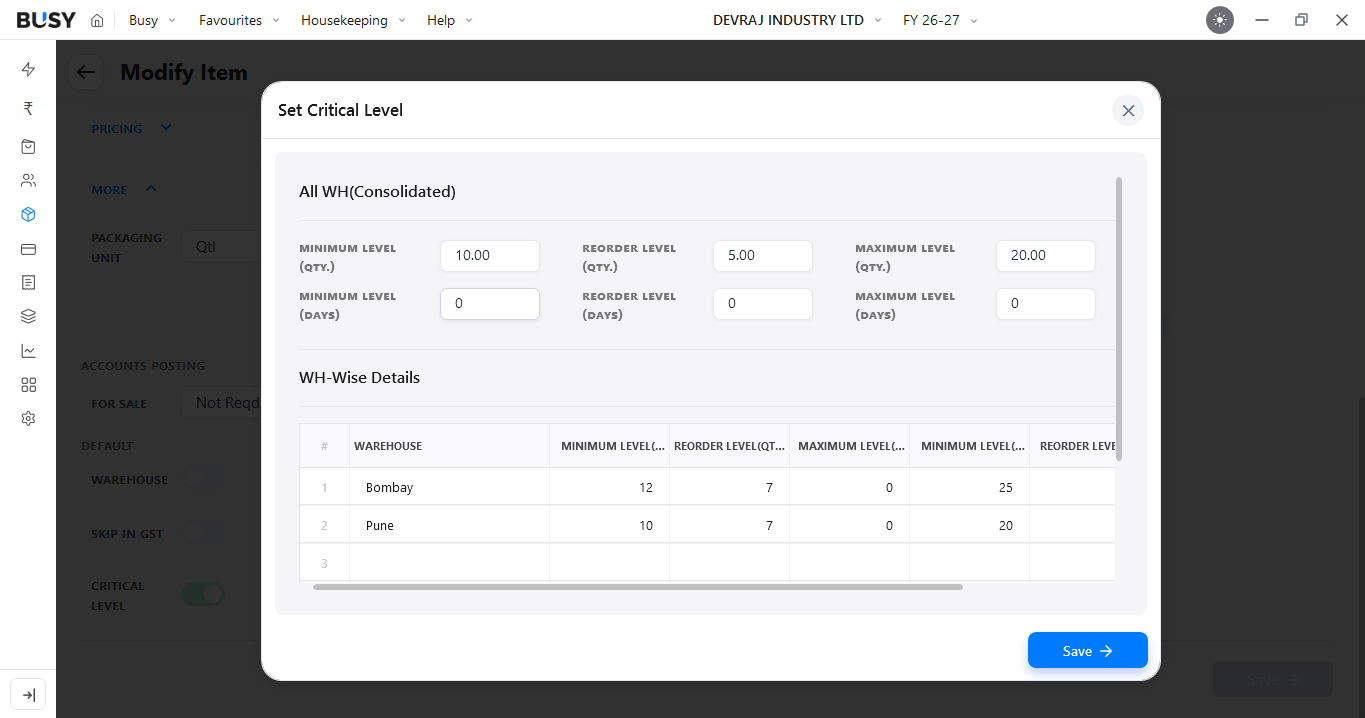
You can configure the required critical levels and define them warehouse-wise where applicable. Click Save after completing the configuration.
Step 9: Configure Stock Level Warnings
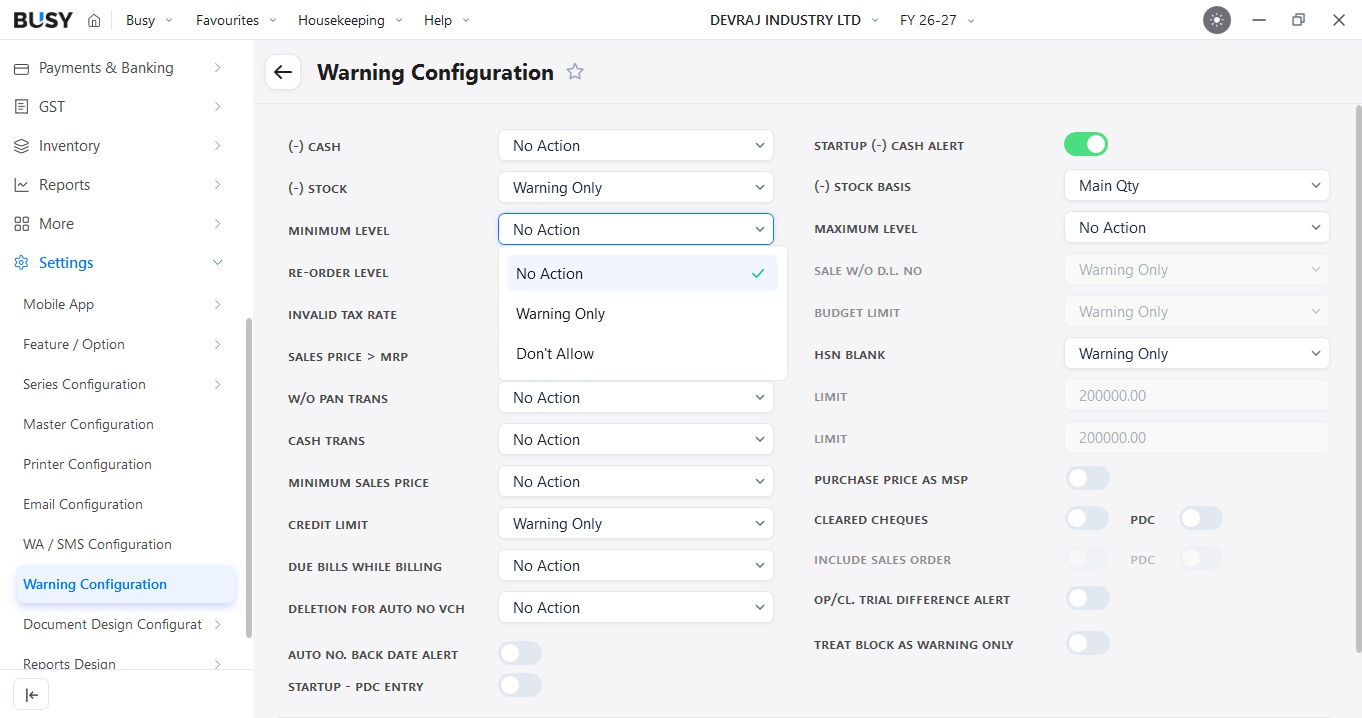
Go to Settings > Warning Configuration and configure how BUSY should respond when stock reaches or falls below the defined critical level. BUSY provides three options:
- No Action: No warning or restriction is applied.
- Warning Only: BUSY displays a warning and allows you to choose whether to continue.
- Don't Allow: BUSY prevents the transaction from proceeding when the configured condition is met.
Complete the warning configuration and click Save.
Step 10: Check the Warning During Sales Entry
.png)
Create a Sales Invoice as usual. If the stock level falls below the configured critical level, BUSY will display the warning according to the option selected in Warning Configuration.
Step 11: View the Item Critical Level Report
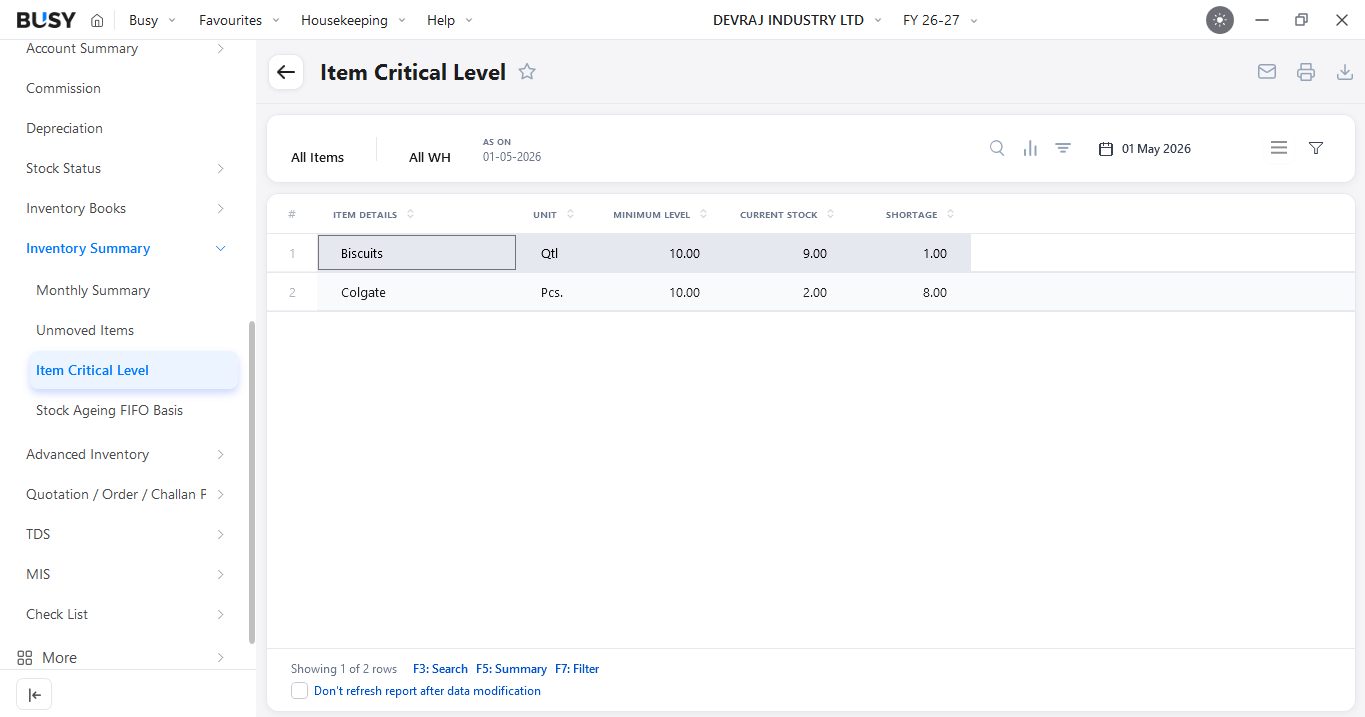
Go to Reports > Inventory Summary > Item Critical Level for the Item Critical Level report to open.
Step 12: View the Reorder Level Report
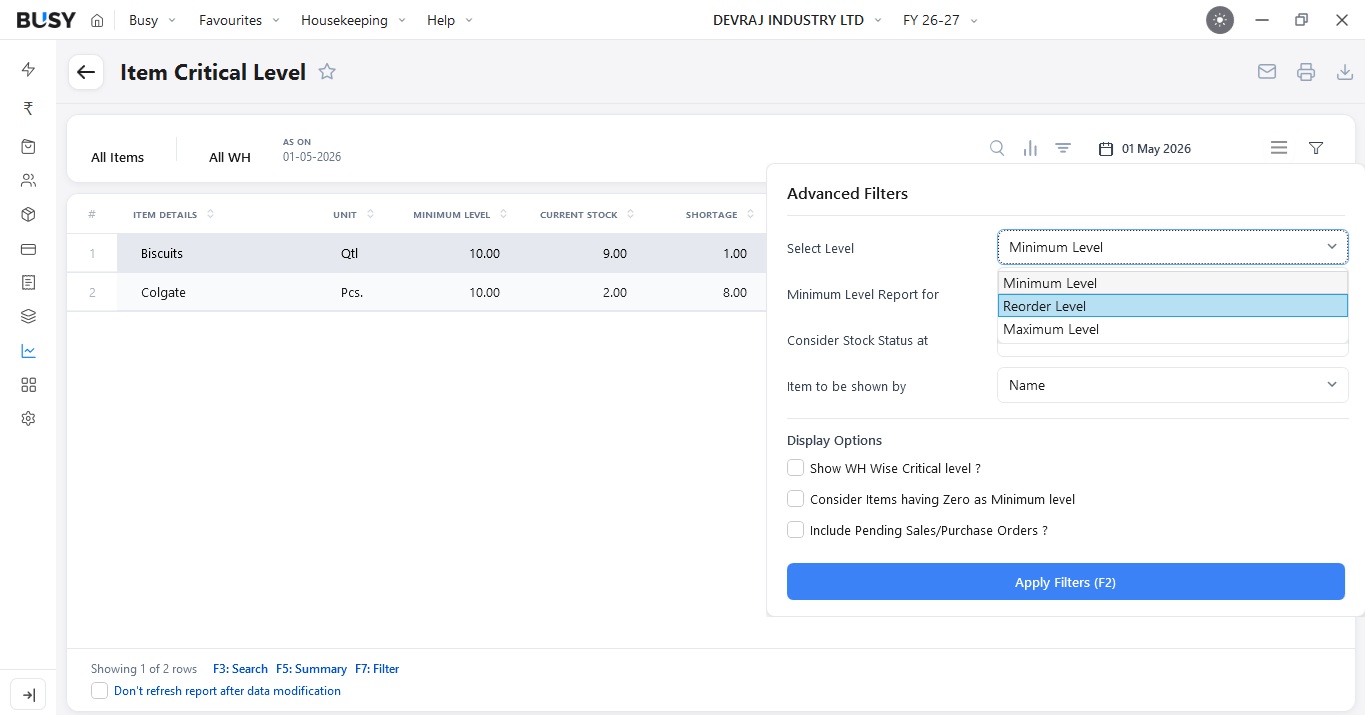
Use Advanced Filters to select the required Reorder Level Report options. Apply the relevant filters to review items based on their configured stock and reorder levels.
What Our Customers Say
Real experiences from businesses across India.
Flexible Plans for Every Business
Paid plans start at just ₹5,000/year. Whatever your size, from small business to scaling enterprise, there's a BUSY plan built for you, so pick what you need today and upgrade anytime.
Enjoy More Accounting Benefits With BUSY
Free Mobile App for access on the go
Complete control over the User Activity Log
Auto-Backup through Google Drive