Product Variant Inventory Management in BUSY
Businesses often sell the same product in multiple variations, such as different sizes, colours, styles, designs, or pack sizes. Managing each variation separately can increase inventory items and make it difficult to maintain accurate stock records. Product variant inventory management helps businesses organise these variations while tracking stock details for each specific variant.
One Product. Multiple Variants.
Manage different sizes, colours, and styles under one product with complete stock visibility.
Trusted by Businesses, Rated by Experts


How BUSY Helps You Manage Multiple Product Variations
Track Multiple Variants Under a Single Product
Configure Parameters Like Size, Colour & Style
Manage Variant-Wise Pricing, Barcodes & Details
View Stock Reports Based on Product Variants
How to Use Product Variant Inventory in BUSY
Step 1: Enable Parameterized Details
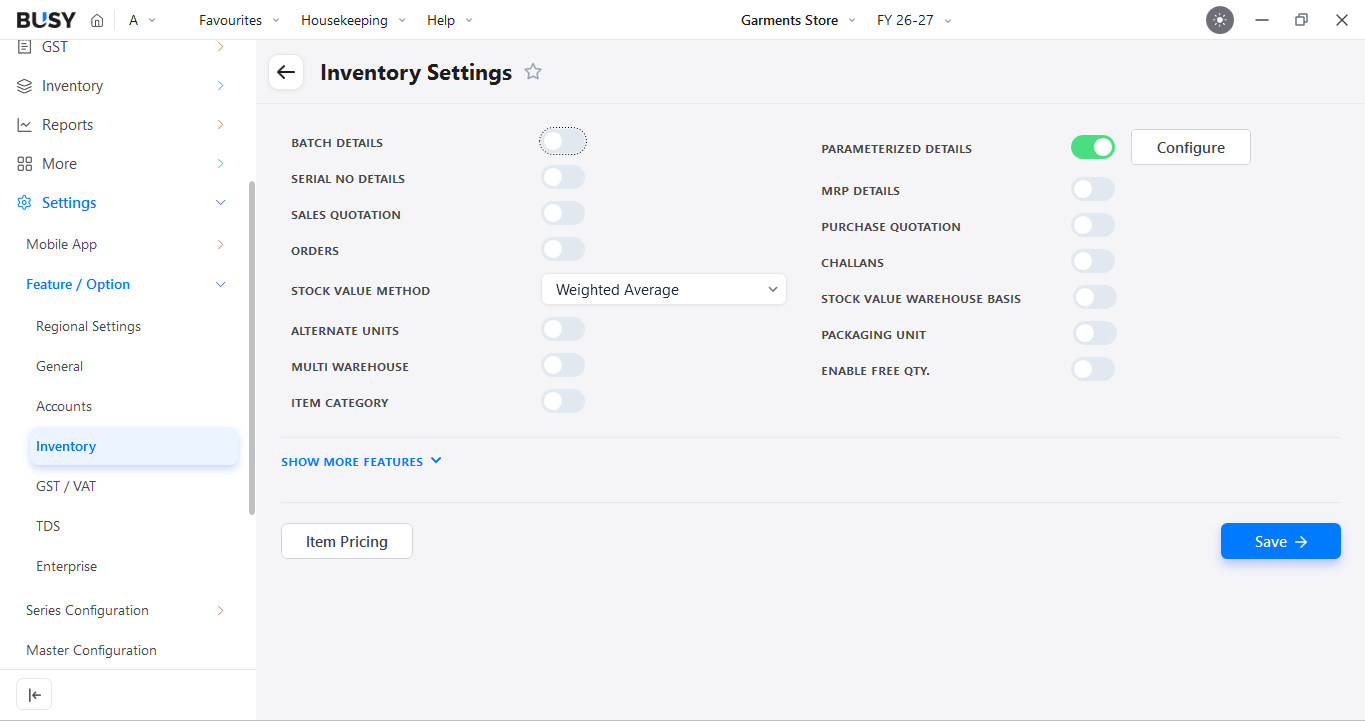
Go to Settings > Features/Options > Inventory and enable Parameterized Details. A configuration window will open.
Here, select the number of parameters you want to maintain. You can configure up to 5 parameters.
Step 2: Configure the Parameters
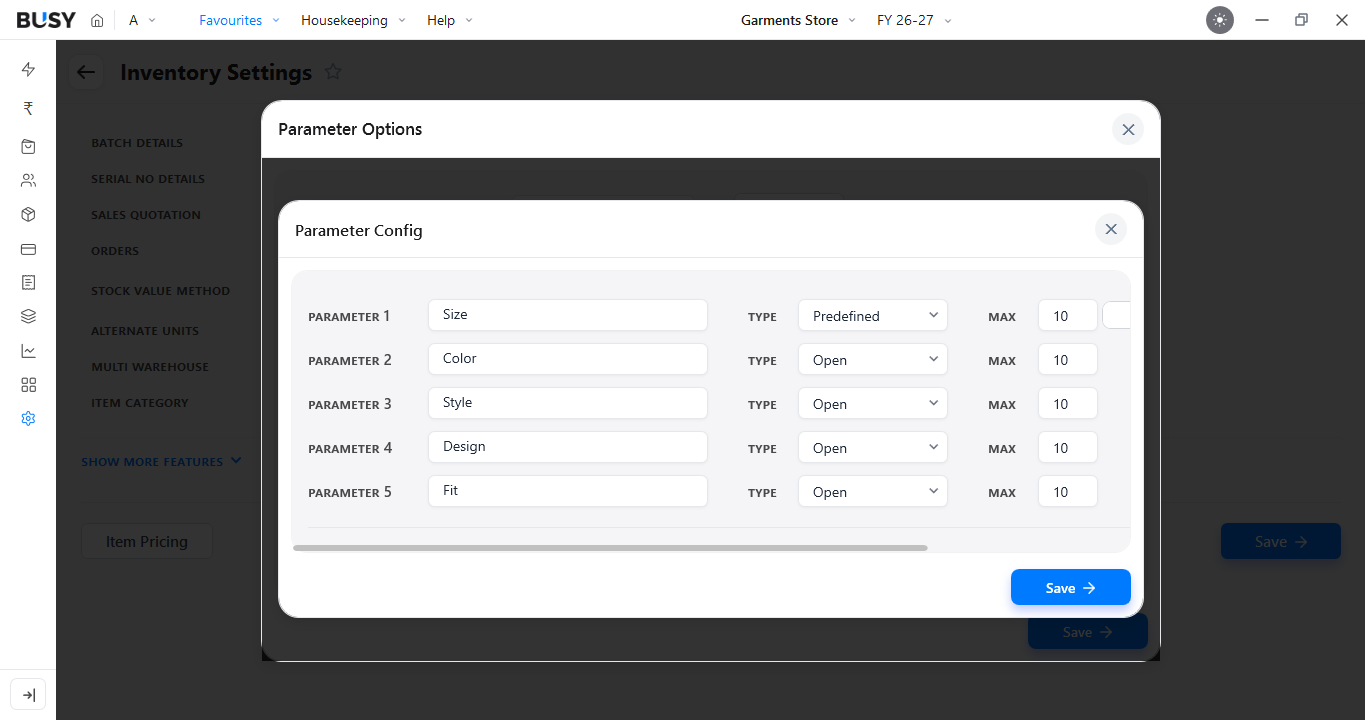
For each parameter, enter the Parameter Name and select its Type:
- Open: The value is not fixed and can be entered manually while creating a transaction.
- Predefined: Values are created in advance and selected from a dropdown.
Specify the maximum number of characters allowed for the parameter, such as 10 or 20.
Under the parameter configuration, enable additional options as required, such as MRP, Sales Price, or Barcode. Save the configuration after completing the required settings.
Step 3: Create an Item
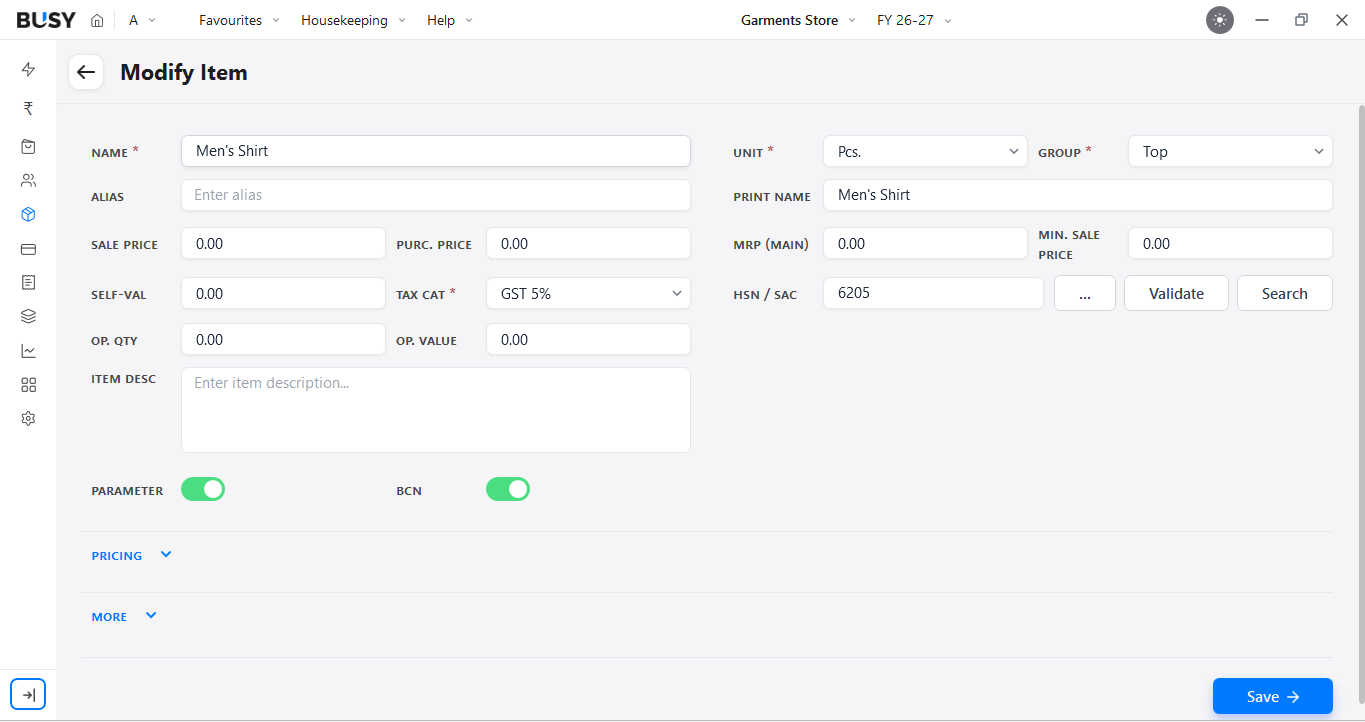
Create or open the required item master. BUSY will ask whether you want to enable Parameterized Details and BCN/Barcode Number. Enable the required option for the item and click on Save.
Step 4: Create a Purchase or Sales Invoice
Open a Purchase or Sales Invoice and enter the required voucher details. Select the item and enter the quantity.
After entering the quantity, the Parameterized Details window will open automatically.
i) Purchase Invoice
If it's a Purchase Invoice, manually enter the Parameterized specifics.
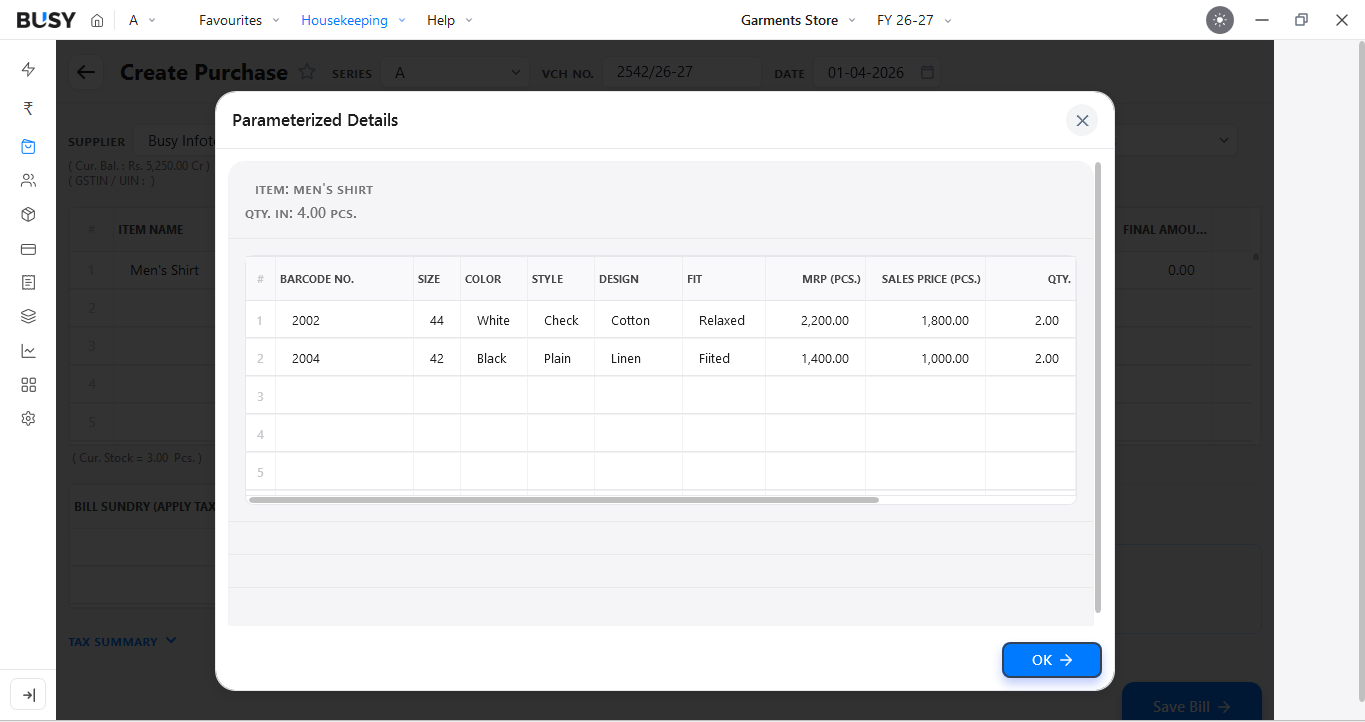
ii) Sales Invoice
If it's a Sales Invoice, pick from the drop-down menu.
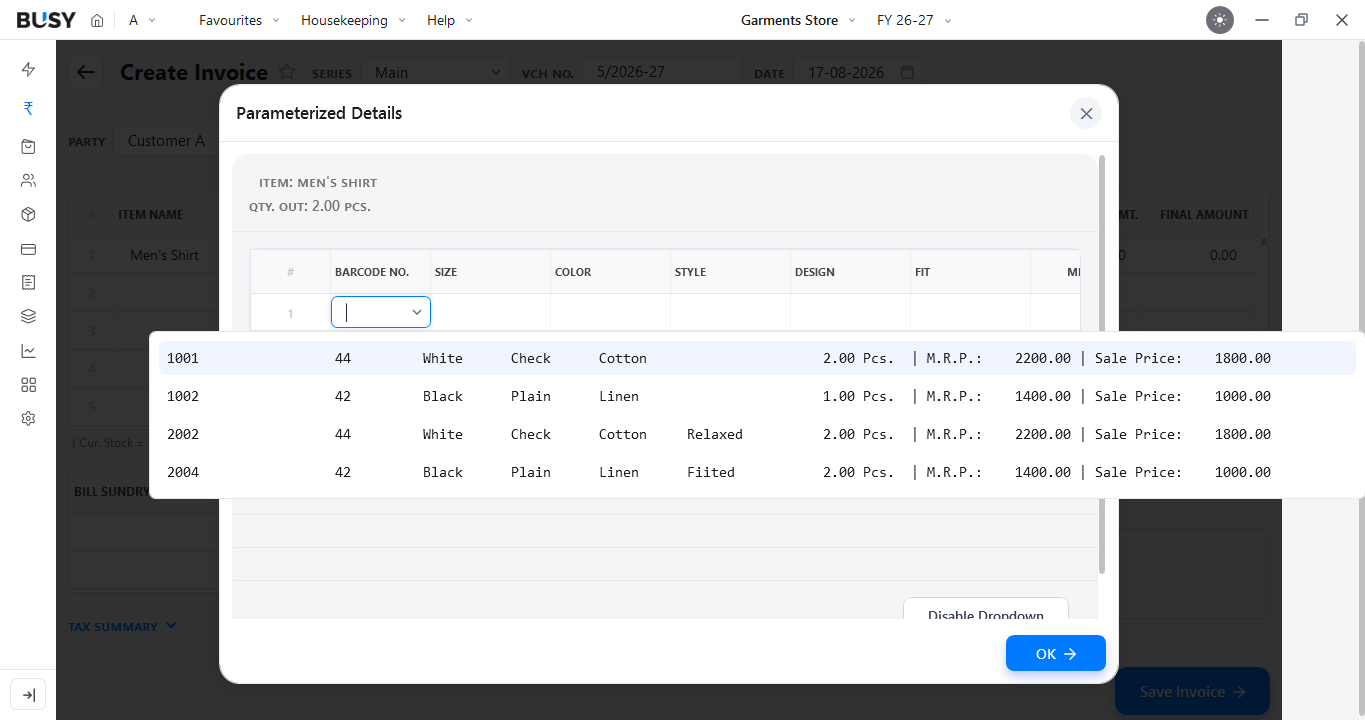
Step 5: Print the Invoice (Sales Invoice)
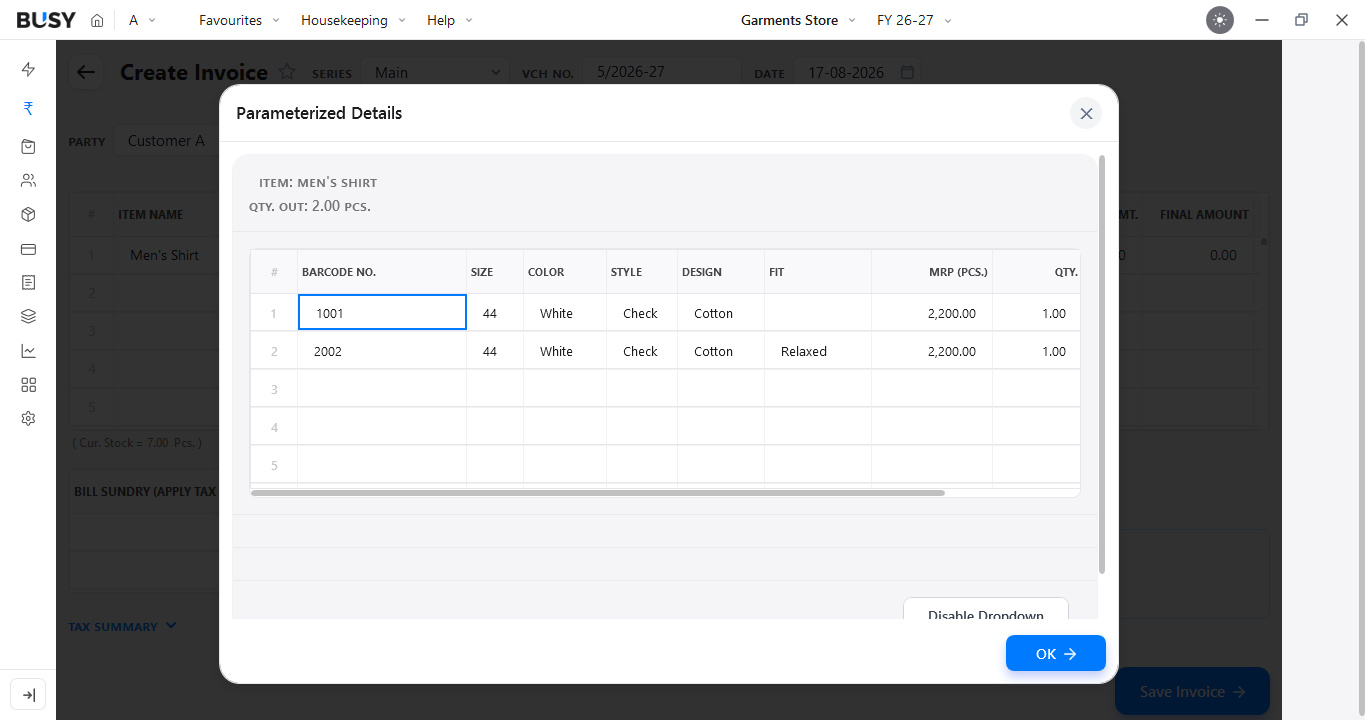
Save the completed invoice. Select the required print format and print or preview the invoice.
The configured parameter details can also be displayed in the invoice print, depending on the print configuration.
Step 6: View Parameter-Wise Stock Reports
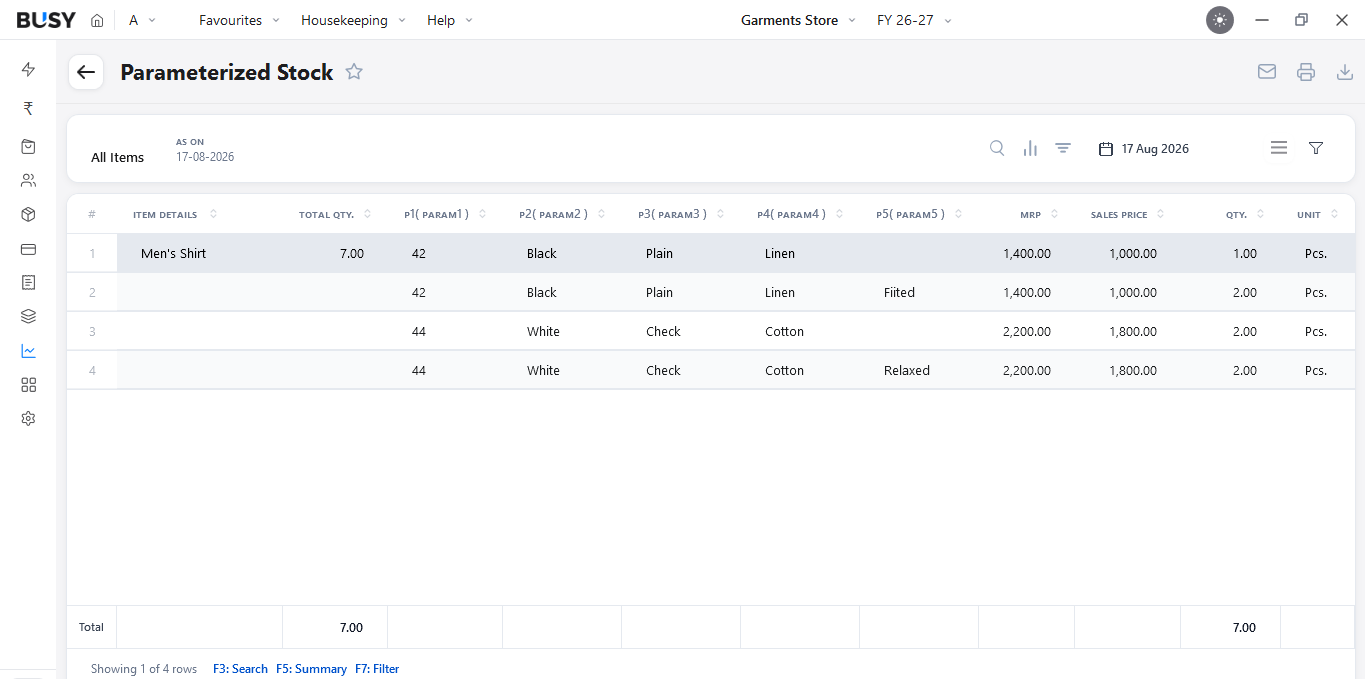
To check stock according to product variants, go to Reports > Advanced Inventory > Parameterized Stock and select the required report.
Step 7: Apply Filters
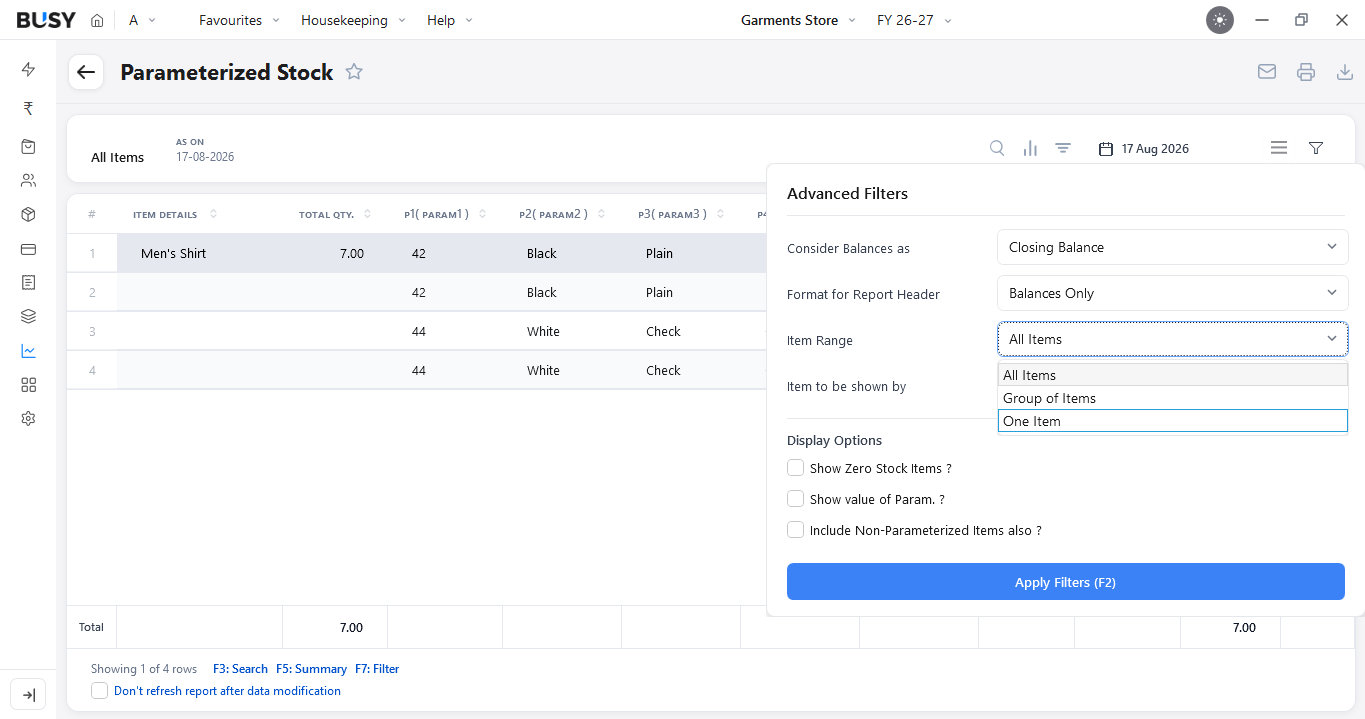
You can use Advanced Filters to view a specific item, a group of items, selected parameter combinations, or required stock records
For larger reports, you can also use search and summary options to analyse the stock more easily.
Step 8: View BCN-Wise Stock
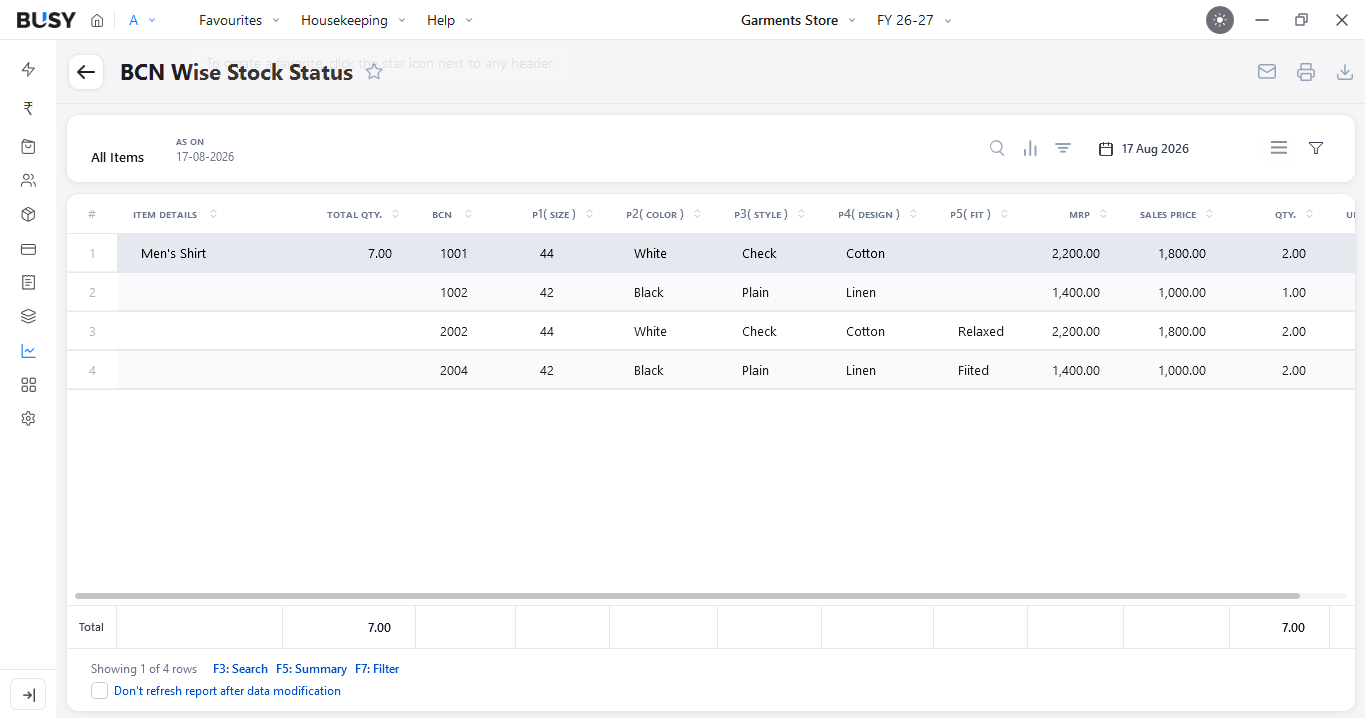
The same process can be used for BCN/Barcode Number-based inventory.
Go to Reports > Advanced Inventory > BCN Stock and select the BCN-related report.
Apply the required filters and review the available stock against the relevant BCN or barcode details.
This helps track stock separately for individual product variants or barcode-based units.
What Our Customers Say
Real experiences from businesses across India.
Flexible Plans for Every Business
Paid plans start at just ₹5,000/year. Whatever your size, from small business to scaling enterprise, there's a BUSY plan built for you, so pick what you need today and upgrade anytime.
Enjoy More Accounting Benefits With BUSY
Free Mobile App for access on the go
Complete control over the User Activity Log
Auto-Backup through Google Drive